
📚 VCF 9.1 Fleet Management Blog Series
This post is part of an ongoing series covering infrastructure automation via the VCF Operations Fleet Management API:
- Part 1: VCF 9.1 Fleet Management API (1): Certificate Management with Custom CA
- Part 2: VCF 9.1 Fleet Management API (2): Certificate Lifecycle with Integrated MSFT CA
- Part 3: VCF 9.1 Fleet Management API (3): Automated Password Management
- Part 4: VCF 9 Certificate Management for Split-Server MSFT CA Deployments
In our previous post, we explored the “Custom CA” workflow where the administrator acts as the bridge between VCF and the Certificate Authority. Today, we look at the power of Integrated Automation through VCF Operations.
When VCF 9.1 is integrated with a Microsoft CA (MSCA), the VCF Operations API transforms certificate replacement into a hands-off operation. No manual CSR downloads, no external signing, and no multi-file concatenation—just a single API trigger to initiate the replacement.
The Setup
For this guide, we will renew the certificate of the Identity Broker managed by VCF Operations in a VCF 9.1 environment.
Environment Details
Throughout this example, we use the following:
- VCF Operations FQDN:
flt-ops01a.rainpole.io - Identity Broker FQDN:
flt-idb01.rainpole.io
Pre-requisite: The Microsoft CA integration must be configured in the VCF Operations UI (Manage->Fleet Management -> Certificates -> Configure CA for Fleet) or VCF Operations API with the correct Server URL, Authentication and Template Name.
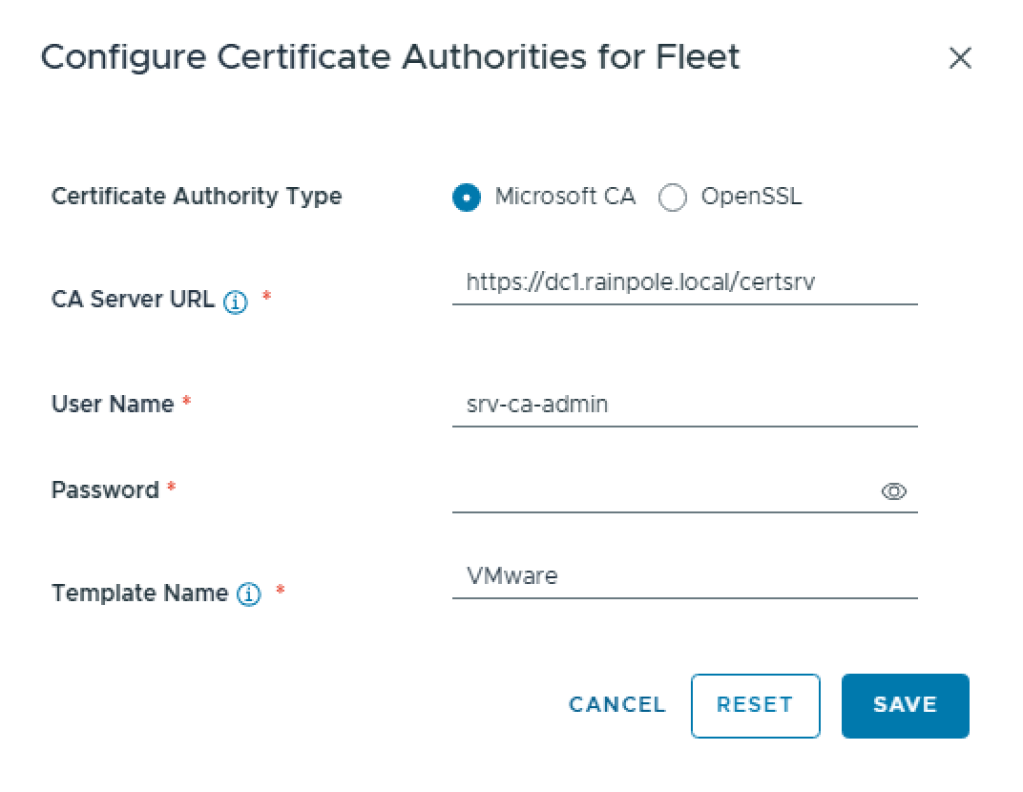
Step 1: Locate the Certificate ResourceKey and Other Certificate Information
To perform any action, we first need the unique identifier for the Identity Broker’s certificate. We use the query API provided by VCF Operations to filter the fleet.
API Request:
curl --request POST \ --url https://flt-ops01a.rainpole.io/suite-api/api/fleet-management/certificate-management/certificates/query \ --header 'accept: application/json' \ --header 'authorization: Bearer {{apiAccessToken}}' \ --header 'content-type: application/json' \ --data '{ "status": "NORMAL", "applianceFqdn": "flt-idb01.rainpole.io", "appliance": "IDENTITY_BROKER", "category": "TLS_CERT"}'
From the response, we extract the certificateResourceKey, subjectAlternativeNames and applianceFqdn.
{ "pageInfo": { "totalCount": 1, "page": 0, "pageSize": 1000 }, ... "vcfCertificateModels": [ { "certificateResourceKey": "727131f3-9d48-3cdf-9a7d-04b9529dc5d8", "issuedTo": "CN=VIDB, OU=vcfms, O=Broadcom, L=Palo Alto, ST=CA, C=US", "appliance": "IDENTITY_BROKER", "displayApplianceType": "Identity broker", "category": "TLS_CERT", "type": "VMCA", "issuedBy": "OU=VMware Engineering,O=sfo-m01-vc01.sfo.rainpole.io,ST=California,C=US,DC=local,DC=vsphere,CN=CA", "status": "NORMAL", "displayStatus": "Active", "daysToExpire": 729, "expiryDate": 1841696925000, "subjectAlternativeNames": { "dns": [ "flt-idb01.rainpole.io" ], "ip": [ "10.11.10.23" ] }, "applianceFqdn": "flt-idb01.rainpole.io", "redirectAvailable": true, "domainId": "", "vcfEndpoint": "sfo-sr01.sfo.rainpole.io", "vcfComponent": "ARIA", "issuedToCommonName": "VIDB", "autoRenewInfo": { "autoRenewStatus": "DISABLED", "autoRenewFailureReason": "" }, "autoRenewState": "DISABLED", "displayAutoRenewState": "Deactivated" } ]}
Step 2: Generate the CSR
Using the certificateResourceKey in Step 1, we request VCF Operations to generate a CSR. Note that we pass the subjectAlternativeNames and applianceFqdn to ensure the new certificate is valid for both the FQDN and the IP.
API Request:
curl --request POST \ --url https://flt-ops01a.rainpole.io/suite-api/api/fleet-management/certificate-management/csrs \ --header 'accept: application/json' \ --header 'authorization: Bearer {{apiAccessToken}}' \ --header 'content-type: application/json' \ --data '{ "certificateId": "{{certificateResourceKey}}", "generateCsrSpec": { "commonName": "{{applianceFqdn}}", "country": "US", "email": "", "keySize": "KEY_2048", "keyAlgorithm": "RSA", "locality": "Palo Alto", "organization": "VMware", "orgUnit": "VMware Engineering", "state": "California", "subjectAltNames": {{subjectAlternativeNames}} }}'
Response: Returns a requestId (e.g., 4f0f9ef3-...) that allows us to track the status of the request.
Step 3: Track CSR Completion
Before moving to the final step, we must verify that the CSR was successfully generated by polling the VCF Operations workflow status API.
API Request:
curl --request GET \ --url https://flt-ops01a.rainpole.io/suite-api/api/workflows/requests/4f0f9ef3-1da2-4517-ab18-9ccf267b898f \ --header 'accept: application/json' \ --header 'authorization: Bearer {{apiAccessToken}}' \ --header 'content-type: application/json'
Success Indicator: The response state must be "COMPLETED".
Step 4: Trigger Integrated Replacement
This is the “Easy Button.” Unlike the Custom CA workflow, we don’t need to manually upload a signed certificate. We simply tell VCF Operations to use the integrated MSCA to sign and install the certificate automatically.
API Request:
curl --request PUT \
  --url https://flt-ops01a.rainpole.io/suite-api/api/fleet-management/certificate-management/certificates/727131f3-9d48-3cdf-9a7d-04b9529dc5d8 \
  --header 'accept: application/json' \
  --header 'authorization: Bearer {{apiAccessToken}}' \
  --header 'content-type: application/json' \
  --data '{
  "caType": "MSCA"
}'
Task Monitoring
Certificate replacement is an asynchronous infrastructure task. We can track the progress through the API as per Step 3 or via the VCF Operations UI under Administration -> Control Panel -> Management Tasks.
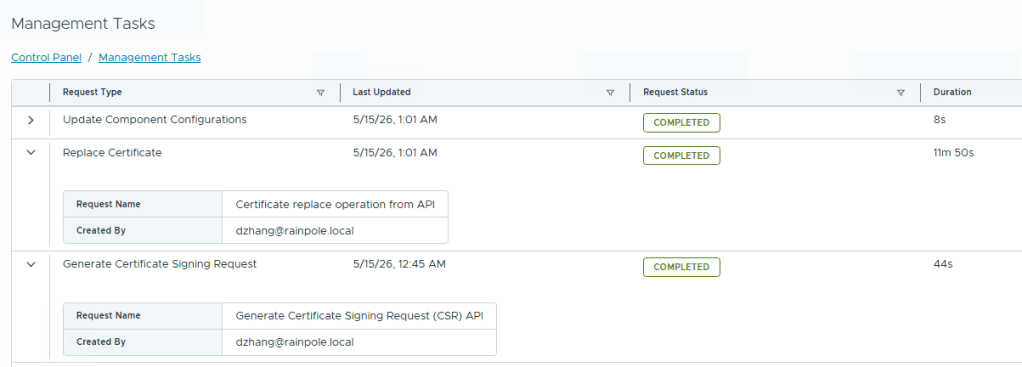
In our testing (nested environment), the Identity Broker replacement took approximately 11 minutes to transition from INPROGRESS to COMPLETED.
Conclusion
Integrating your Microsoft CA with VCF Operations in VCF 9 removes the “middle-man” from certificate operations. By using the VCF Operations Certificate Management APIs, organizations can automate their entire certificate lifecycle, ensuring security standards are met across the infrastructure without the risk of manual errors in handling PEM files.


Pingback: VCF 9.1 Fleet Management API (1): Certificate Management with Custom CA – davidwzhang.com
Pingback: VCF 9.1 Fleet Management API (3): Automated Password Management – davidwzhang.com
Pingback: VCF 9 Certificate Management for Split-Server MSFT CA Deployments – davidwzhang.com